Pocket Option with a MetaTrader 5 Signal Indicator
Pocket Option is a chart-based trading platform, but its built-in tools are limited compared with what you can do in MetaTrader 5. A common workaround is to run a custom signal indicator on an MT5 chart, read the condition it flags there, and then place the matching trade over on Pocket Option. This page covers how that pairing works, how to set it up, and where it falls short. A signal indicator flags a condition; it does not predict what price will do next.
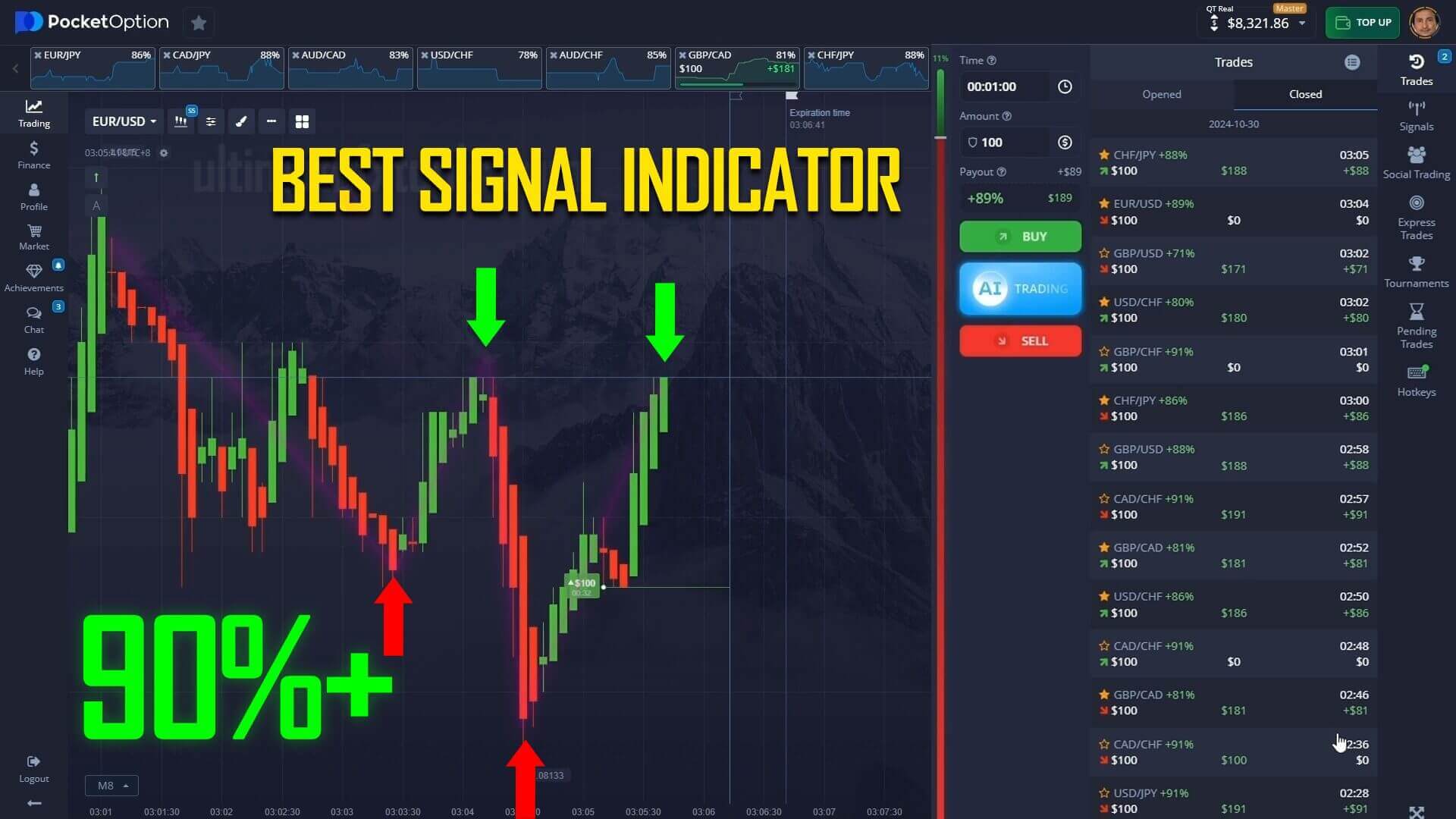
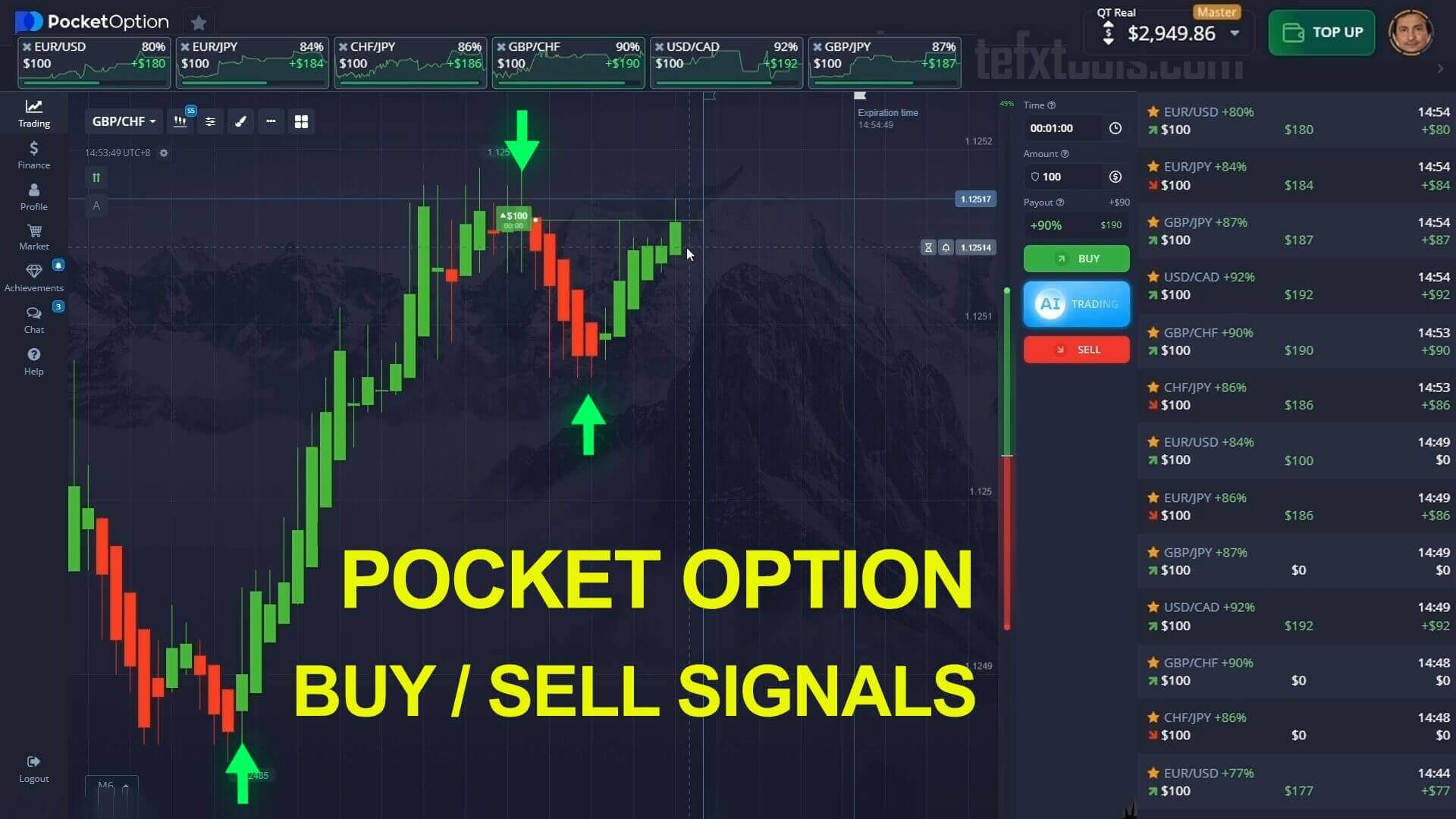
The indicator shown here is the Sniper Pro Version 5, an alert tool that plots arrows on the MT5 chart when its momentum conditions line up. Treat those arrows as decision support: a prompt to look closer, not an instruction to click.
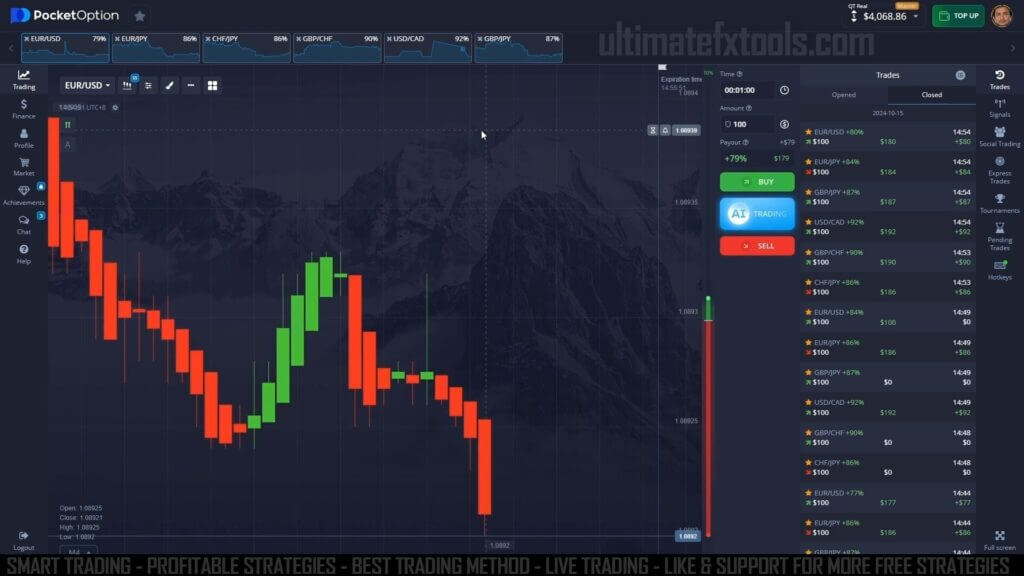
What the signal indicator actually flags
Sniper Pro V5 watches for short-term momentum shifts on the pair you load. When its internal conditions align, it prints an up arrow (a possible move higher) or a down arrow (a possible move lower) and can fire an alert. That is the whole job: it marks a moment worth your attention. It has no knowledge of news or spreads, so the read still depends on you confirming the wider context before acting.
MT5 is where you read it — Pocket Option is where you trade
MetaTrader 5 is a charting and analysis platform. You use it to read the indicator; you do not trade Pocket Option from inside MT5. The workflow is to keep an MT5 chart open on the same currency pair and timeframe as your Pocket Option chart, wait for the arrow, confirm it, then place the position on Pocket Option manually. Aligning the two charts so the candles match up makes the timing usable.
One real limitation is worth stating plainly: custom MT5 indicators like this only run on the MetaTrader 5 desktop application. They do not run inside the Pocket Option app or the MetaTrader 5 mobile app. If you trade entirely from a phone, this method will not work as described — you need a desktop or laptop running MT5 alongside your Pocket Option window. Traders who want a phone-only approach are usually better served by the built-in indicators for Pocket Option mobile instead.
How to install and add the indicator
Setup on the desktop MT5 terminal follows the standard custom-indicator process:
- Open MetaTrader 5, then choose File → Open Data Folder and drop the indicator file into MQL5 / Indicators.
- Restart the terminal (or right-click the Navigator panel and choose Refresh) so the indicator appears in the list.
- Open a chart for a liquid pair that also exists on Pocket Option, then drag the indicator onto it.
- In the settings dialog, enable alerts if you want a sound or pop-up when an arrow prints, and keep the default sensitivity so arrows appear only on meaningful momentum turns, not every small wiggle.
Trade a few pairs you know well, keep the chart clean, and let each candle finish forming before you read the arrow — a half-formed candle can repaint.
How to confirm a signal — and when it fails
Add a second, independent read so you are not acting on the arrow alone. A momentum oscillator such as MACD or RSI works well: only take an up arrow when momentum is also turning up, and a down arrow when momentum is turning down. When the arrow and your confirmation disagree, treat the alert as noise and skip it. Filtering out those conflicting signals is the single biggest factor in trading with more consistency instead of chasing every arrow.
The method fails in predictable places. Flat, directionless ranges produce arrows that go nowhere. Major news releases can move price against a clean-looking setup in seconds. And no indicator removes losing trades, so risk control is what keeps you in the game: stake a small, fixed fraction of your balance per trade, cap your trades per session, and stop for the day once you hit a preset loss limit. Never chase a loss by increasing your stake — a doubling-up approach can wipe an account far faster than it recovers one. Practise the whole routine on a demo account until the reads feel automatic before you risk real funds. Our Pocket Option risk trading guide and the MT4 with Pocket Option guide cover the same ideas in more depth.
FAQ
Can I run this signal indicator on my phone?
No. Custom MetaTrader 5 indicators run only on the desktop MT5 terminal, not in the Pocket Option app or the MT5 mobile app. You need a computer running MT5 next to your Pocket Option chart. Phone-only traders should look at platform-native indicators instead.
Does the arrow predict the next candle?
No. The arrow flags a momentum condition the indicator is built to detect — it is decision support, not a forecast. Losing trades are a normal part of short-expiry trading, which is why the confirmation step and strict risk limits matter more than any single alert.
Where do I get the indicator?
Sniper Pro V5 and every other tool on the site are included with a single $39 lifetime plan. You install it on the desktop MT5 terminal using the steps above, then read it against your Pocket Option chart.
This content is for educational purposes only. Trading involves risk. Past results do not guarantee future outcomes. Always practice responsible money management and limit your daily trades to avoid large losses.